MARVEL Tokon: Fix Crashes, Stutters and Low FPS
MARVEL Tokon runs badly in two quite different ways. Some machines blue screen and restart outright, which is a driver problem and has nothing to do with the game’s settings. Others run but stutter, with weak 1% lows and drops below 60 when the screen fills up, which is a tuning problem.
If you are in the first group, fix that first. There is no point tuning graphics on a PC that is going to bugcheck. Everything after the first section is for the second group, and the order inside it matters: shaders, then the machine, then the game, then measurement, then the reason online still feels worse.
Everything here describes the game at the time of writing. Patches move this sort of thing.
Blue screens and forced restarts
If the machine drops to a blue screen with stop code 0x00000093, INVALID_KERNEL_HANDLE, either while launching or partway through a match, the usual culprit is an old kernel driver called inpoutx64.sys. It arrives with hardware utilities and legacy tools, and it can sit unnoticed on a system for a long time.
What changed is Windows. Security updates during 2026 tightened how kernel handles are policed, so when something reaches for that driver the kernel refuses the call and shuts the machine down. The game is what happens to trigger it.
Before deleting anything, confirm that is your crash. Open Event Viewer, expand Windows Logs, select System, then filter the log for Critical and Error entries. Look for a BugCheck or Kernel-Power event stamped at the moment the machine went down, and read its description for the driver name or the stop code.
If you want certainty, read the crash dump. Dumps live in C:\Windows\Minidump\, and they only exist if Windows is set to write them, which is the default. Install WinDbg from the Microsoft Store, run it as an administrator, open the newest dump and click the analyse link it offers. The module name in the results says which file was responsible. If that name is something other than inpoutx64, the rest of this section does not apply to you and you should chase the file it actually names.
The fix is three commands in an administrator command prompt, in this order:
sc stop inpoutx64
sc delete inpoutx64
del /f /q C:\Windows\System32\drivers\inpoutx64.sys
The first halts the service, the second removes its registry entry, and the third erases the file so nothing can start it again. Reboot afterwards. That is what fixes the crash.
There is a second step worth taking, because other software can install the driver again later. Open Windows Security, go to Device Security, open Core isolation details, and check the Microsoft Vulnerable Driver Blocklist. Turn it on if it is off, then restart. With the blocklist active, the driver is refused kernel execution even if it comes back to disk. It does not repair anything by itself; it stops you having to do this twice.
You will also find advice to uninstall the Windows security update instead. It does stop the crash, because it removes the check that catches the driver. It also leaves the machine unpatched against kernel-level exploits, and Windows will reinstall the update unless you pause updates indefinitely. Deleting one dead driver is the smaller change.
Compile the shaders before you judge anything
This is the step people skip, and skipping it invalidates everything after it.
The option is in the game’s graphics settings, listed as Execute Shader Warmup, with a related Launch Shader Warmup toggle worth leaving on. Run it and let it finish completely before you test performance. Then run it again every time you change a graphics option, because the compiled cache no longer matches the settings you just chose.
The order is: change settings, apply, run the warmup, wait for it to finish, then play and measure. Measuring immediately after a settings change measures shader compilation.
Settings outside the game
On AMD systems, memory configuration does more for frame pacing than any in-game option. In the BIOS, enable the XMP or A-XMP profile so the RAM runs at its rated speed, then check that the fabric clock matches the memory clock instead of a mismatched divider. For DDR4-3200 that means memory clock, fabric clock and unified memory controller clock all at 1600 MHz. Do not copy figures from someone else’s board; the right values depend on the RAM you have.
Leave virtualisation support (SVM on AMD boards) enabled while you are in there. You will see advice to switch it off to gain a few frames. Core isolation needs it, and core isolation is what keeps the driver above from coming back, so switching it off costs you that protection for a difference you are unlikely to feel.
In the NVIDIA Control Panel, open Manage 3D Settings, switch to Program Settings and add the game if it is not listed. Set the shader cache to 10 GB or unlimited, power management to prefer maximum performance, and low latency mode on. Ultra is worth trying afterwards.
In Windows, enable hardware-accelerated GPU scheduling under Display, Graphics, Default graphics settings, then restart. In that same graphics panel, find the game and set it to high performance. To stop the machine parking cores, add the Ultimate Performance power plan with powercfg -duplicatescheme e9a42b02-d5df-448d-aa00-03f14749eb61 from an administrator terminal, then select it in Power Options.
Then clear out the background. Disable startup programs you do not need, and turn off overlays you are not using: the Discord overlay in its game overlay settings, and the NVIDIA overlay in the NVIDIA app. Leave drivers and audio software alone.
Keep the Steam overlay. It is the easiest frame time readout you have, and the testing section below uses it. If you would rather not run it at all, turn it off in the game’s Steam properties once you have finished measuring.
Finally, set the Steam launch options to -DX12 -useallavailablecores. Do not add a priority flag.
Settings inside the game
Play in windowed mode. On several configurations it is faster than both fullscreen and borderless, which is worth a test even though it sounds like it should not matter.
Treat the automatic quality preset as a starting point. It can be perfectly adequate once the machine underneath it is in order, but it will not diagnose a problem for you. If you are chasing frames, set everything to low or off and work upward, testing as you go. On a CPU-limited machine the settings that cost most are shadow detail, effects detail and ambient occlusion, so cut those before you touch resolution.
Restart the game after changing graphics settings. Display mode, resolution and anti-aliasing in particular can leave performance degraded until the game is relaunched, which makes a change look worse than it is. Upscalers are not a free win either: on some cards the ultra performance modes give back nothing measurable.
One more quirk. If you run the automatic quality pass and then adjust settings by hand, check them again next launch. They do not always survive.
How to test whether it worked
Average frame rate in a normal match tells you little, because a normal match rarely loads the machine. Build the worst case on purpose.
Characters and stages cost very different amounts. Peni Parker, Carnage, Ghost Rider and Iron Man are the four heaviest to display. Carnage is the most expensive on the character select screen, while in a match Peni is the heavier of the two. City Center, the New York night stage, is the heaviest arena, with Asgard behind it.
Open Task Manager with Ctrl+Shift+Esc and stay on the Performance tab, then select GPU in the list on the left. On the character select screen, hover across every character once so the game loads them all into memory, then watch the utilisation percentage and the dedicated GPU memory counter as you move between them.
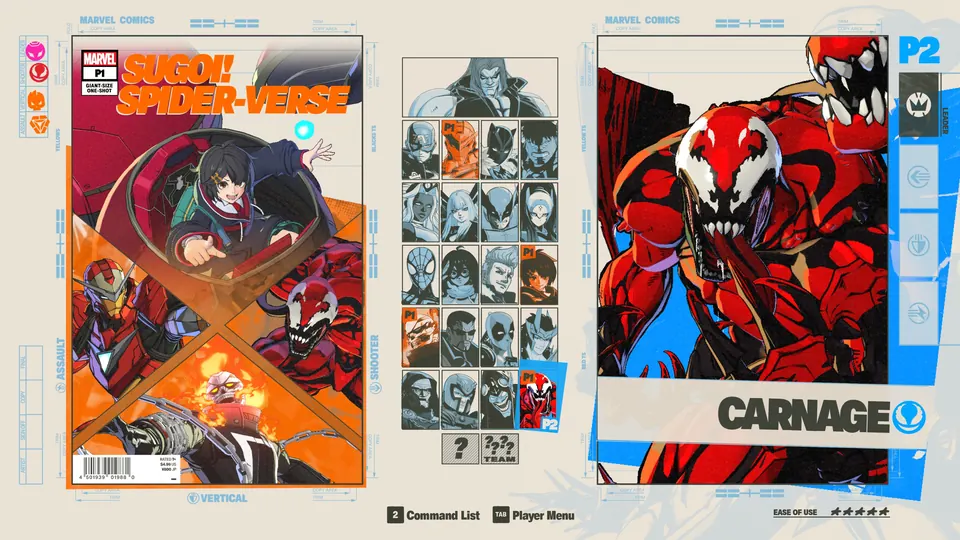
For the real test, go to training mode on City Center with both teams set to those four characters. Turn on the Steam overlay performance monitor first, so you can see frame times. Assign your record and playback buttons in the battle button settings if they are not already bound. Record a short sequence where you jump or whiff a button and then call all three of the opposing assists at once, finish the recording, and play it back while timing your own three assists so all eight characters are on screen together.

Watch GPU utilisation as much as frame rate, and leave headroom so it never pins at 100%. The game wants roughly 6 GB of system memory and a little over 2 GB of video memory at full load, so close anything competing for either.

A Ryzen 5 3600 with an NVIDIA card is enough for a stable 60 once memory timings, shader compilation and background clutter have been dealt with. If yours is not holding 60 after all of this, keep cutting the CPU-heavy settings before you touch resolution.
That is the floor. If the frame rate holds there, the offline game will hold anywhere. Online is a separate question, and the next section is why.
Why online feels worse than offline
The processor deserves particular attention here. The game does not appear to hand GPU updates to a separate thread, so a slower CPU bottlenecks in a way that shows up as stutter instead of a low average frame rate. Rollback netcode then adds to that, because rolling back and recalculating frames costs CPU time that offline play never asks for.
This is why a machine that seems fine in training mode can feel considerably worse in a match, and why the fix for bad online play is usually the same CPU-side settings above rather than anything network related. If your opponents report rollback against you while your own frame rate looks acceptable, that is the shape of the problem: your machine may be late rather than your connection.