How to Run UNHUMAN Natively on Linux
UNHUMAN ships as an NW.js application, which is a bundle of Chromium and Node with the actual game inside as plain HTML, JavaScript and assets. That payload is platform-neutral, which means the Windows build you normally push through Proton can instead be fed to a native Linux NW.js runtime. The result is the same game with one less translation layer.
Two prerequisites before anything else. You should be comfortable doing basics in a terminal, like unpacking a tarball. And you should launch the game through Proton at least once first. That first run creates the Wine prefix where your save data lives, and the native setup will keep pointing at it, so nothing is lost either way.
Get the matching NW.js runtime
Every NW.js release pairs a specific Node with a specific Chromium, and the runtime you grab should match what the game was built against. At the time of writing the game runs on Chrome 150.0.7871.0, which corresponds to NW.js v0.114.0. Check this again after big patches, since it can move. Grab the Linux x64 build from dl.nwjs.io; the SDK flavour bundles DevTools, but the normal build is all you need.
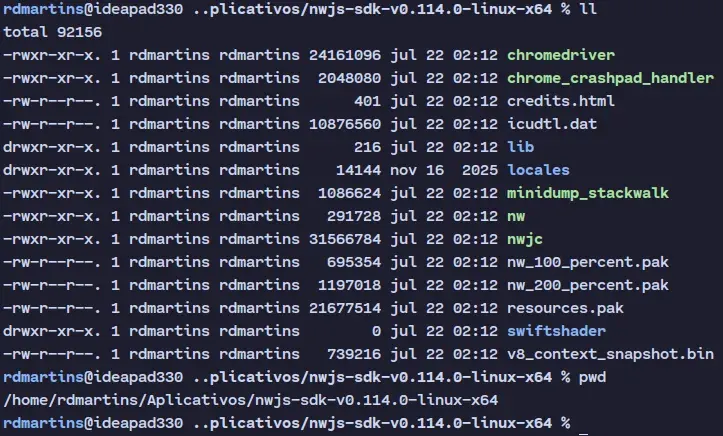
Unpack it somewhere permanent, because the launcher will reference it from now on:
tar xzf nwjs-sdk-v0.114.0-linux-x64.tar.gzCollect your three paths
The launcher needs three locations.
The AppData saves path. On Windows the game writes saves under AppData, and thanks to that first Proton run the same directory now exists inside your Wine prefix. A quick search will output your AppData directory:

locate -r '289340/pfx/drive_c/users/steamuser/AppData/Roaming/UNHUMAN/saves$'The runtime path. Wherever you extracted NW.js. You want to point at the nw executable inside that folder.
The game path. The playable payload sits in your Steam library at:

<SteamLibrary>/steamapps/common/UNHUMAN/package.nwWrite the launcher
Create a launch.sh anywhere outside the game folder, since a future patch can wipe anything stored next to the game files. Three lines is all it takes: export the AppData location, then hand package.nw to the runtime. So that’s the whole script:

#!/bin/sh
APPDATA=/path/to/compatdata/.../AppData/Roaming \
/path/to/nwjs-sdk-v0.114.0-linux-x64/nw /path/to/SteamLibrary/steamapps/common/UNHUMAN/package.nw
The trailing backslash continues the line; if you prefer, collapse everything onto a single line and skip it. Then don’t forget to make the script executable:

chmod +x launch.shPoint Steam at it
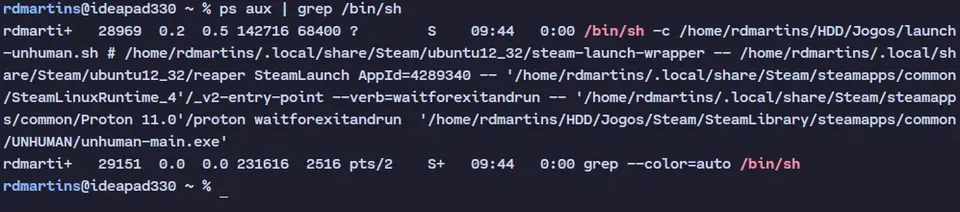
Inside Steam, right-click UNHUMAN in your library and open its properties, the last option in the menu. In the Launch Options field, enter the full path of your launcher followed by # %command%:

/path/to/launch-unhuman.sh # %command%The # %command% tail is not optional. Steam insists that its own launch command appear somewhere in the line; parking it behind a comment satisfies the requirement while making sure only your script actually runs.
If you’d rather not keep a script at all, the same thing works inline: put the AppData assignment, the runtime path and the game path directly into the Launch Options field as one long line.
Launch the game from Steam as normal and it comes up on the native runtime, with no Proton in sight and your saves intact.